My Journey to Kernel Power - Part 2
Now that we have a general idea of the capabilities of kernel drivers, let’s move on to the actual story of how I found my first BYOVD drivers and how they can be used in a modern environment to implement security solutions.
Series note: My Journey to Kernel Power is a multi part series. Part 1 established the theoretical foundation of Windows kernel drivers, User Mode and Kernel Mode communication, driver loading mechanisms, and the privileges required to load a driver. This second part moves from theory to practice: I document the research and the process that led to my first BYOVD findings on a modern Windows system. The following parts will build on these findings by exploring additional driver based attack scenarios, their technical prerequisites, controlled validation, and defensive implications.
Prerequisites
My Lab Environment
As described in Part 1 of this series, drivers can cause invasive damage. For this reason, I worked with three virtual machines throughout the entire research project. Most of the work takes place in a Windows 11 25H2 VM, which has Visual Studio, Ghidra, WinDBG, and x64dbg installed. Based on the software, it’s relatively easy to see that the main purpose of the VM is to analyze drivers and develop potential exploits. The second VM is also a Windows 11 25H2 with the latest updates, including an installed Sophos XDR. How this is configured will be explained in more detail later. The third is a classic Kali system and was used only for filtering drivers; no other steps were taken on this machine.
Software (including drivers) that is not recognized by current EDR software is not automatically safe and trustworthy, as it may still contain malicious functionality. Therefore, only run unknown code in a controlled environment where no damage can be done.
Definition of Scope
I have defined the scope of this research project such that the user in the test VM has local administrator privileges with XDR enabled otherwise, the project would become too extensive if privilege escalation also had to be considered.
Objective
The objective is to find a driver with a vulnerability that is not publicly known, which can be used on a current, patched system including an XDR configured according to best practices to disable the XDR.
Obtaining Drivers
The first step in analyzing the drivers is to obtain the files themselves. For this analysis, I drew on several data sources.
- Google Advanced Search. The query I used was
"microsoft" filetype:sys. While this source did provide drivers, it was a very manual process, so this option didn’t scale very well for me. - Manufacturer software distribution packages. Many hardware manufacturers, including Lenovo, Dell, and HP, offer so called Enterprise Packages. These contain all drivers for a given hardware model in their “raw” form,
.SYSfiles which are intended for administrators to install the drivers via software distribution. - In AnyRun’s Threat Intelligence, it’s possible to filter by file type, similar to Google Search. The advantage of this is that you can access
.SYSfiles with minimal effort.
Using these three data sources, I collected 15.549 drivers that were ready for analysis.
First Filter
But since I now have such a large number of drivers, I need to automate my workflow because I can’t spend several hours manually reverse engineering each driver myself.
So, as a first step, I had to figure out what the actual vulnerability should look like. Since this is my first time researching drivers, I decided to start with a simple vulnerability. The goal is to find a driver that provides unchecked and unfiltered access to the ZwTerminateProcess function.
Extract Data
To filter the drivers, I used the radare2 framework. The framework includes the rabin2 tool, which can be used to extract sections, headers, or imports.
With rabin2, we can list all imports.
Imports are functions that are not implemented by the PE itself and, when called, refer to an external library. We must run
rabin2as follows:rabin2 -i /Path/To/Driver.sys-ilists all imports. You can find the complete help documentation in the online manual.
An example of rabin2’s output looks like this:
rabin2 -i /Path/To/Driver.sys
nth vaddr       bind type lib          name
--- ----------- ---- ---- ------------ ----------------------------
1   0x140003028 NONE FUNC ntoskrnl.exe IofCompleteRequest
2   0x140003030 NONE FUNC ntoskrnl.exe IoCreateDevice
3   0x140003038 NONE FUNC ntoskrnl.exe IoCreateSymbolicLink
4   0x140003040 NONE FUNC ntoskrnl.exe IoDeleteDevice
5   0x140003048 NONE FUNC ntoskrnl.exe IoDeleteSymbolicLink
6   0x140003050 NONE FUNC ntoskrnl.exe IoGetCurrentProcess
7   0x140003058 NONE FUNC ntoskrnl.exe ObfDereferenceObject
8   0x140003060 NONE FUNC ntoskrnl.exe ZwCreateFile
9   0x140003068 NONE FUNC ntoskrnl.exe ZwSetInformationFile
10  0x140003070 NONE FUNC ntoskrnl.exe ZwClose
11  0x140003078 NONE FUNC ntoskrnl.exe ExFreePoolWithTag
12  0x140003080 NONE FUNC ntoskrnl.exe ZwDeleteKey
13  0x140003088 NONE FUNC ntoskrnl.exe ZwDeleteValueKey
14  0x140003090 NONE FUNC ntoskrnl.exe ZwEnumerateKey
15  0x140003098 NONE FUNC ntoskrnl.exe ZwEnumerateValueKey
16  0x1400030a0 NONE FUNC ntoskrnl.exe ZwTerminateProcess
17  0x1400030a8 NONE FUNC ntoskrnl.exe PsLookupProcessByProcessId
18  0x1400030b0 NONE FUNC ntoskrnl.exe ObOpenObjectByPointer
19  0x1400030b8 NONE FUNC ntoskrnl.exe swprintf_s
20  0x1400030c0 NONE FUNC ntoskrnl.exe PsProcessType
21  0x1400030c8 NONE FUNC ntoskrnl.exe KeBugCheckEx
22  0x1400030d0 NONE FUNC ntoskrnl.exe ExAllocatePoolWithTag
23  0x1400030d8 NONE FUNC ntoskrnl.exe RtlCopyUnicodeString
24  0x1400030e0 NONE FUNC ntoskrnl.exe RtlTimeFieldsToTime
25  0x1400030e8 NONE FUNC ntoskrnl.exe DbgPrintEx
26  0x1400030f0 NONE FUNC ntoskrnl.exe ZwOpenKey
27  0x1400030f8 NONE FUNC ntoskrnl.exe RtlInitUnicodeString
1   0x140003000 NONE FUNC WDFLDR.SYS   WdfVersionBind
2   0x140003008 NONE FUNC WDFLDR.SYS   WdfVersionUnbind
3   0x140003010 NONE FUNC WDFLDR.SYS   WdfVersionUnbindClass
4   0x140003018 NONE FUNC WDFLDR.SYS   WdfVersionBindClass
There, we can see all the functions that are being used, and we can also identify which library provides them. We use this information to set up the filtering. We only want to continue working with the drivers that have a reference to ZwTerminateProcess in the Import Address Table.
Rabin2 also supports outputting data in valid JSON format, which is very helpful for further processing. To get the output as JSON in STDOUT, we simply need to include the -j argument.
To automate this process, I wrote a small program in C#.
There are probably better languages for this task, but since I’ve already done a lot of work in
C#, this is the fastest way for me to get things done
using System.Diagnostics;

namespace DriverImportExporter
{
    internal class Program
    {
        static void Main(string[] args)
        {
            string folder = "/tmp/drivers/";
            string[] allFiles = Directory.GetFiles(folder, "*.sys");

            Console.WriteLine($"Found {allFiles.Length} files");

            foreach (string singleFile in allFiles)
            {
                ProcessStartInfo startInfo = new ProcessStartInfo
                {
                    FileName = "/usr/bin/rabin2",
                    Arguments = $"-i -j {singleFile}",
                    RedirectStandardOutput = true
                };

                Console.WriteLine($"Processing {singleFile} ({startInfo.Arguments})");
                Process process = Process.Start(startInfo);

                process.WaitForExit();

                string outputContent = process.StandardOutput.ReadToEnd();
                File.WriteAllText($"{singleFile}.json", outputContent);
            }
        }
    }
}
I won’t go into every single line, but will focus only on the actual code flow. For simplicity, I’ve defined a fixed path where the drivers must be located. In this folder, all files that match the *.sys pattern are stored in an array (only the paths, not the actual files). We iterate over every item in this array. During this process, rabin2 is called with the arguments -i -j FilePathToDriver.sys, we then read the content generated by rabin2 and save it to a new file, whose name is the same as the driver name with the suffix .json (If the name is ExampleDriver.sys, the new file would be named ExampleDriver.sys.json)
When we run this, we get the following output:
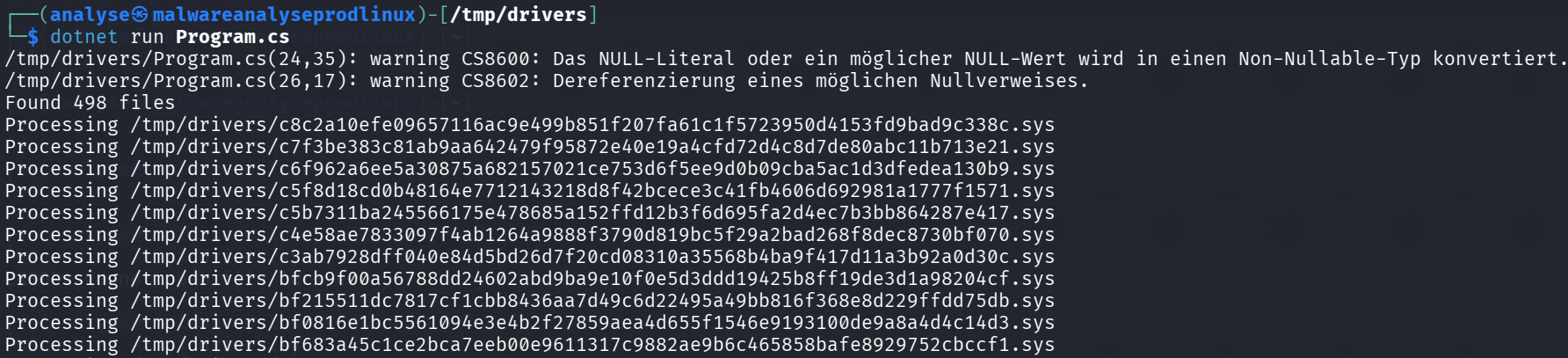
The ability to run
.csfiles directly was first introduced in .NET 10
The simplified JSON that is generated looks like this:
{
  "imports": [
    {
      "ordinal": 1,
      "bind": "NONE",
      "type": "FUNC",
      "name": "IofCompleteRequest",
      "libname": "ntoskrnl.exe",
      "plt": 5368721448
    },
    {
      "ordinal": 2,
      "bind": "NONE",
      "type": "FUNC",
      "name": "IoCreateDevice",
      "libname": "ntoskrnl.exe",
      "plt": 5368721456
    },
    {
      "ordinal": 3,
      "bind": "NONE",
      "type": "FUNC",
      "name": "IoCreateSymbolicLink",
      "libname": "ntoskrnl.exe",
      "plt": 5368721464
    }
  ]
}
I have now copied the drivers, including Result, to the Windows VM used for analysis, to the path C:\temp\drivers, and created a new folder named withZwTerminate within it.
Using a slightly longer “one liner”, I move all drivers that import ZwTerminateProcess to the withZwTerminate folder
Get-ChildItem -Filter "*.sys.json" | ForEach-Object {
  $driverResult = Get-Content $_.FullName | ConvertFrom-Json
  if($driverResult.imports.name -contains "ZwTerminateProcess"){
    Move-Item $_.FullName.Replace(".json", '') -Destination "withZwTerminate/"
  }
}
Loading Test
Through the previous filtering process, we have already reduced the number to 865 drivers. We will now continue working with these. Before we delve into an in depth analysis of the actual drivers, we have one more step to narrow down the number of drivers that are relevant to our project. This will benefit us in the later analysis, allowing us to focus our time on the relevant drivers. The goal of the test is to filter out all drivers that we cannot load. We test this very simply by actually trying to load the drivers.
Warning: Do not do this on your production system. All of the analysis and testing procedures I perform are carried out in an isolated environment. To do this, I always copy a set of drivers to the Windows Analysis Virtual Machine, into the folder C:\drivers\
dir
  The volume on drive C: has no label.
  Volume serial number: FA80-E5CC

  Directory of C:\drivers

  September 5, 2026  10:57        DIR          .
  February 15, 2022  3:37 AM      87,200 00a0a1g.sys
  October 20, 2024  5:07 PM       89,568 15b2cf7.sys
  June 21, 2026  9:29 PM          1,192,160 1b6416j.sys
  June 13, 2026  12:29 AM         288,912 3d50d8a.sys
  June 10, 2026  2:29 AM          171,480 4eee23u.sys
  November 8, 2018  3:47 PM       680,416 7ae875p.sys
  June 3, 2026  8:04 AM           457,928 8b6956m.sys
  June 10, 2026  1:29 AM          427,512 9c55bc1.sys

  8 file(s),      3,395,176 bytes
  1 directory(ies), 71,514,435,584 bytes free
I’ll start with the first driver, 00a0a1g.sys
sc create driver1 type=kernel binPath=C:\drivers\00a0a1g.sys
[SC] CreateService SUCCESS

C:\drivers>sc start driver1

SERVICE_NAME: driver1
        TYPE               : 1  KERNEL_DRIVER
        STATE              : 4  RUNNING (STOPPABLE, NOT_PAUSABLE, IGNORES_SHUTDOWN)
        WIN32_EXIT_CODE    : 0  (0x0)
        SERVICE_EXIT_CODE  : 0  (0x0)
        CHECKPOINT         : 0x0
        WAIT_HINT          : 0x0
        PID                : 0
        FLAGS              : 0
Since I was actually able to launch this driver, it has already qualified for the next round. I won’t go into detail about every driver I was able to launch, but will focus only on the various cases in which the drivers could not be launched.
Invalid Certificate
There are several reasons why the certificate might be invalid, preventing the driver from loading. In this example, the certificate used to sign the driver has expired.
C:\drivers>sc start driver3
[SC] StartService FEHLER 2148204801: A required certificate is not within its validity period as determined by the current system time or the timestamp in the signed file.
A required certificate is not within its validity period as determined by the current system time or the timestamp in the signed file. However, it also happens that drivers that are still in the development phase are accidentally released and are signed only with an internal certificate.
Missing Procedure
C:\drivers>sc start driver3
[SC] StartService ERROR 2148204801: The specified procedure was not found.
This error message can have several causes. The most common is that the dependencies used by the developer cannot be resolved. Under normal driver operation, this should not occur, since the dependencies are included with the software installer.
File not found
If the Service Control Manager returns code 2 when the driver starts, there are primarily two possible errors.
C:\drivers>sc start driver1
[SC] StartService ERROR 2: The system cannot find the specified file.
The first error, as the message states, is that the ServiceManager cannot find the SYS file. This can be resolved relatively easily. However, if the path is correct and the message still appears, it may be because the driver is not a valid kernel driver, it could be one of the following types of drivers:
- MiniFilter driver (file system)
- NDIS driver (network)
- Storport (storage)
I won’t go into further detail on the driver types mentioned, as they are not relevant to this research. By directly testing whether the drivers could be loaded, the list of possible drivers was narrowed down to 210. That’s still a high number, but compared to 865, it’s a number that’s easier to work with.
In the next section, we’ll focus specifically on analyzing the driver that contains a vulnerability and how it can be exploited. To analyze it, we’ll reverse engineer it to understand how it works.